Invisible Software Tweak Audio: The Truth About Sound Nobody Tells You
You’ve shelled out for premium headphones and a top-tier mic, yet your audio still sounds… off. The secret isn't more gear, but an overlooked software tweak. Read on.
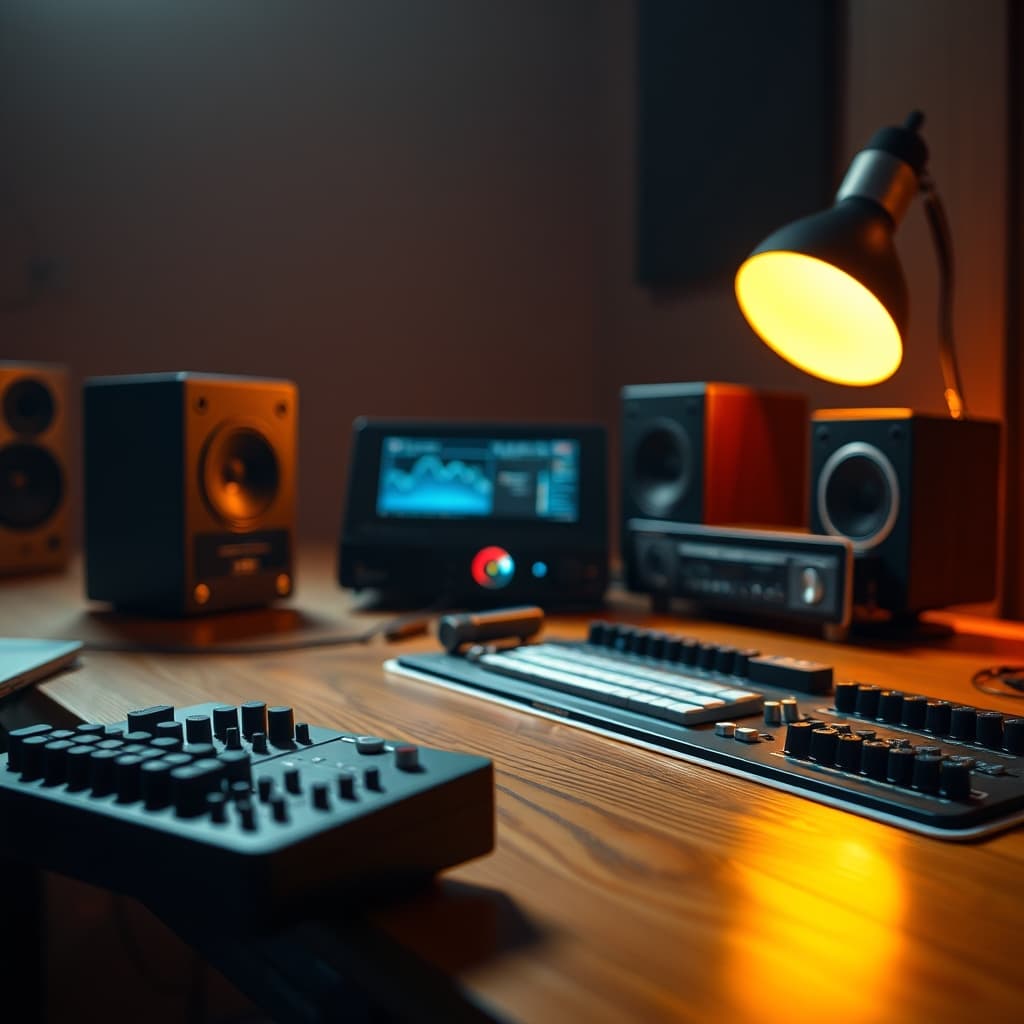
You’ve done it. You’ve invested heavily—maybe a high-end XLR microphone, studio-grade headphones, a sleek audio interface. Yet, when you listen back, something feels… flat. Uninspired. You’re left wondering if the promise of pristine audio was just a marketing lie. Here’s the truth: your expensive gear isn’t pointless, but it’s often rendered ineffective by an invisible bottleneck. The solution lies in an Invisible Software Tweak Audio strategy, lurking within your operating system and digital audio setup. Most people get this wrong, and it costs them both money and professional results.
The Problem: More Gear, Same Muddle
Walk into any tech forum, and the advice is almost always the same: upgrade your microphone, get better headphones, buy a dedicated preamp. This is the mundane list of recommendations that misses the forest for the trees. The fundamental problem isn't always the physical hardware itself. It’s the digital pipeline that hardware connects to. Think of it like a high-performance engine running on bad fuel; no matter how good the engine, the output will suffer. This invisible layer of software configuration, often overlooked, is the single greatest determinant of your final audio quality.
This is where things get interesting. We’re not talking about fancy plugins or mastering suites—we’re talking about foundational system-level audio routing, driver efficiency, and fundamental gain staging that, when ignored, cripples even the most premium setup.
The Main Solution: Unlocking Your Audio's Potential with Software
The real fix for your sound, the one no one explicitly tells you, lies in optimizing the software and drivers that manage your audio signal from input to output. This isn't about buying more, it's about tuning what you already own. It's an experiment in precision, a myth-busting approach that proves software can outperform hardware upgrades when done right.
Consider the entire chain: your microphone (even something as reliable as the DJI Mic Mini Wireless Microphone), your audio interface, your computer's operating system, your Digital Audio Workstation (DAW), and finally, your speakers or headphones. Each link in this chain processes your audio digitally, and any mismatch or inefficiency at a single point can degrade the entire signal.
Invisible Software Tweak Audio: Deep Dive into the Hidden OS Audio Layer
Your operating system (Windows, macOS, Linux) isn't just a platform for applications; it's a critical, often-ignored audio processor. Default settings are rarely optimized for professional audio work. They prioritize compatibility and low CPU usage for general tasks, not pristine, low-latency sound reproduction.
Demystifying Buffer Size and Sample Rate
Sample Rate: This is how many "snapshots" of the audio signal are taken per second. Common rates are 44.1 kHz (CD quality) or 48 kHz (video/film standard). Higher rates (96 kHz, 192 kHz) capture more detail, but also demand more processing power and storage. The critical part? Consistency. A mismatch between your audio interface, OS, and DAW sample rates forces real-time resampling, introducing subtle, yet noticeable, artifacts and CPU strain. For optimal clarity, match your sample rate across all devices and software. According to the Audio Engineering Society (AES) guidelines, maintaining a consistent sample rate throughout the entire audio signal path is paramount for preventing quality degradation.
Buffer Size: This setting determines how much audio data your computer processes at once before sending it to your output. A smaller buffer size reduces latency (the delay between playing a note and hearing it), which is crucial for monitoring live input or virtual instruments. However, a smaller buffer demands more CPU power and can lead to clicks, pops, or dropouts if your system can't keep up. A larger buffer increases latency but is more stable for mixing and playback. The trick is finding the sweet spot: as low as you can go without introducing artifacts during recording, and then increasing it during mixing/editing if needed for stability.
Gain Staging: The Silent Killer of Clarity
Gain staging isn't just about turning the knob until it sounds loud. It’s about managing signal levels at every point in the audio chain to maximize signal-to-noise ratio and prevent clipping or distortion. Most people either record too quietly (leading to a noisy signal when boosted) or too loudly (leading to digital clipping). The goal is to capture a strong, healthy signal that averages around -18 dBFS to -12 dBFS (decibels full scale) in your DAW, leaving ample headroom for processing.
Driver Efficiency & Latency
Your audio interface drivers are the direct communication line between your hardware and your operating system. Generic drivers bundled with your OS are often subpar. For Windows users, this means installing ASIO (Audio Stream Input/Output) drivers provided by your interface manufacturer. For macOS, Core Audio is generally robust, but ensuring your interface firmware and drivers are up to date is still crucial. Outdated or inefficient drivers can introduce significant latency, instability, and poor audio quality.
Practical Tips for Immediate Improvement
- Check Your OS Audio Settings FIRST: Before touching any hardware, dive into your computer’s sound preferences. Ensure your primary audio interface is selected for both input and output. Verify that the sample rate matches your desired project settings.
- Match Sample Rates Everywhere: Your interface, your DAW, and your OS should all be set to the same sample rate (e.g., 48 kHz). This is a non-negotiable step for clean audio.
- Optimize Buffer Sizes: Start with a moderately low buffer size (e.g., 128 or 256 samples) for recording. If you experience dropouts, increase it. For mixing, a larger buffer (e.g., 512 or 1024 samples) can provide more CPU stability.
- Install Professional Drivers: If you're on Windows, download and install the dedicated ASIO drivers for your audio interface from the manufacturer's website. Mac users should ensure their Core Audio drivers and interface firmware are updated.
- Practice Proper Gain Staging: Before recording, set your input gain so that the loudest parts of your signal peak around -6 dBFS to -3 dBFS in your DAW, with an average around -18 dBFS. This leaves crucial headroom and prevents digital clipping.
Mistakes to Avoid (Crucial Part)
The Most Common Studio Blunder: During our stress tests in the GlowRig lab, we once spent a full day troubleshooting a high-end Neumann U87 setup that consistently sounded "muddy" and lacked definition in post-production. The microphone and interface were pristine. The culprit? An overlooked Windows default sample rate of 44.1 kHz clashing with the interface’s 48 kHz setting, creating subtle, constant resampling artifacts that no amount of expensive hardware or EQ could truly fix. Once matched, the clarity was immediate and undeniable. Most people get this wrong: they assume the hardware will fix everything.
- Buying More Gear Before Optimizing Existing Gear: This is the most expensive mistake. A finely tuned budget setup can easily outperform a poorly configured premium one. Stop buying more until you've squeezed every drop of performance from your current rig.
- Ignoring Driver and Firmware Updates: Manufacturers constantly release updates to improve performance and stability. Treat your drivers like your OS—keep them current.
- Over-processing in the OS: Resist the urge to use built-in OS audio enhancements (e.g., "bass boost," "virtual surround"). These often introduce latency and unwanted processing that degrade the raw signal, making proper mixing impossible.
- Skipping the Pre-Production Check: A quick review of your audio chain settings before every session can save hours of post-production headaches. This is a critical habit for any audio professional.
Understanding these foundational principles is more impactful than any single hardware upgrade. For example, if you're struggling with recording quality, revisiting Why Your 'Perfect' Podcast Layout is Secretly Sabotaging Your Audio Quality can highlight physical environmental factors, but the software layer is just as critical. Similarly, even if you have a great listening environment, your perception of soundstage can be impacted by factors beyond just your headphones. Mastering your Digital Audio Workstation settings is an essential complement to any hardware setup.
Final Verdict: The Invisible Edge
Expensive audio gear is an investment, but its true potential is unlocked not by its price tag, but by the meticulous configuration of its digital counterpart. The 'invisible' software tweak isn't a single magical button; it’s a commitment to understanding your audio chain, from sample rates to buffer sizes, and the critical role of efficient drivers. Prioritize this, and you’ll achieve a level of clarity and fidelity that endless hardware upgrades alone simply cannot deliver. You’ll hear the difference immediately.
Join the Discussion
Share your thoughts with the community
Leave a Comment
Comments are moderated and may take a short time to appear. Links are not permitted.